Airtable to Webflow for SEO: How to Sync CMS Content at Scale

TL;DR: Managing SEO content across dozens or hundreds of Webflow CMS items is painful without a structured backend. This post shows how to connect Airtable to Webflow using Make, WhaleSync, or Zapier so your team has a single source of truth that syncs directly to your live site.
How do you connect Airtable to Webflow for SEO?
Connecting Airtable to Webflow lets you manage SEO content in a structured spreadsheet and automatically push it to your live site. The fastest method uses a third-party automation tool like Make (formerly Integromat) or Zapier to map Airtable fields to Webflow CMS fields and trigger syncs whenever records are updated. Done right, this pipeline gives your team a single source of truth for content while keeping every published page fully optimized for search.
Key Takeaways
- Use Make, WhaleSync or Zapier to automate Airtable-to-Webflow syncs without writing custom code.
- Map every SEO-critical field in Airtable: title, meta description, slug, and body copy before building your automation.
- Keep slugs lowercase, hyphenated, and keyword-rich to protect your URL structure at scale.
- Use Airtable formula fields to auto-generate meta titles and descriptions within character limits.
- Schedule sync checks to catch drift between Airtable records and live Webflow items.
- Validate structured data after each sync to ensure schema markup is not broken by the automation.
Why should marketers connect Airtable to Webflow for SEO?
Managing SEO content manually in Webflow's Designer becomes unmanageable once you cross a few dozen pages. Airtable acts as a content operations hub, giving writers, strategists, and developers a shared workspace where every SEO field (title tag, meta description, canonical URL, body copy) is visible, editable, and version-controlled before it ever touches the live site.
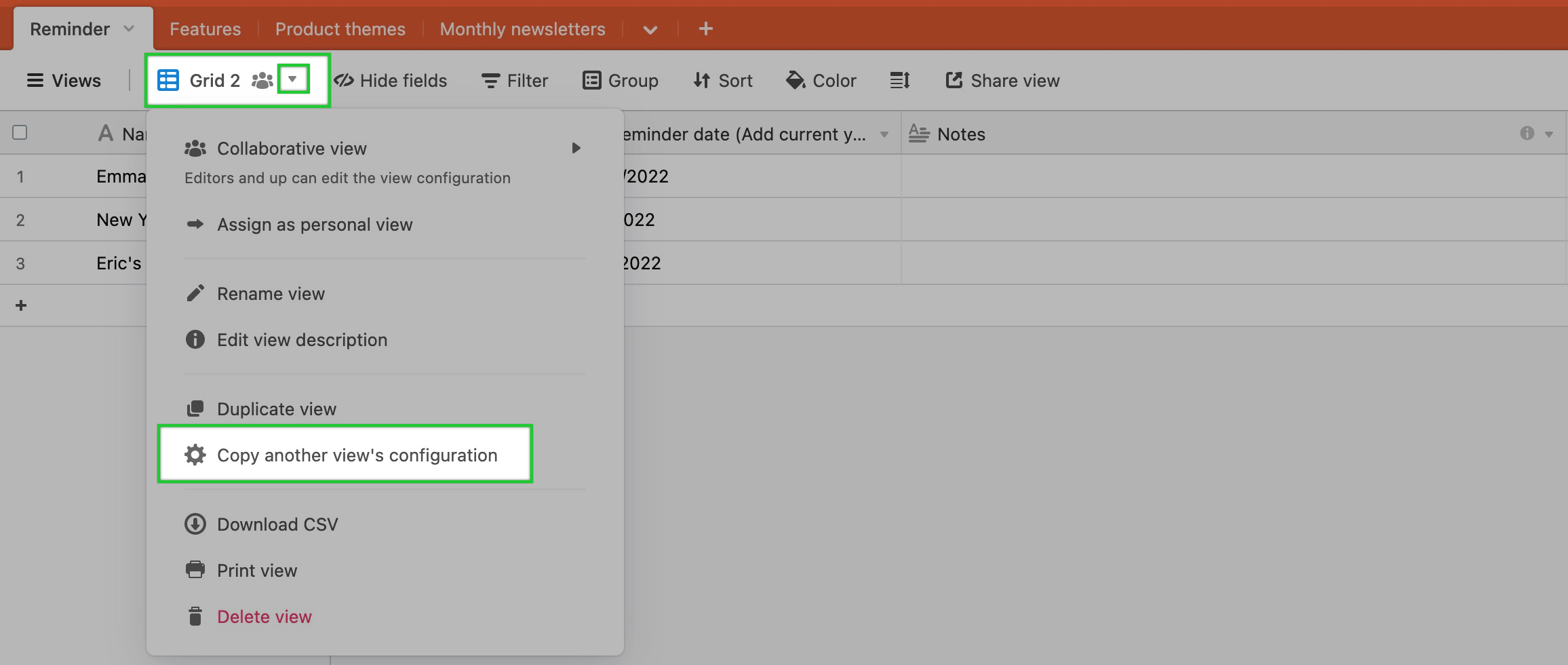
For teams running programmatic SEO campaigns, such as landing pages built from product data, location variants, or keyword clusters, this combination is especially powerful. Airtable holds the structured data; Webflow renders it beautifully; and the automation layer between them keeps everything in sync with zero manual publishing. For the full list of Webflow SEO settings you should have in place before scaling with Airtable, see our Webflow SEO optimization checklist.
What tools do you need to sync Airtable with Webflow CMS?
You have three primary options for building the integration:
- Zapier: The quickest option to set up. Zapier's pre-built Webflow and Airtable integrations let non-technical teams launch a basic sync in under an hour, though it offers less control over edge cases.
- Webflow's Native CMS API and Airtable Scripting: For developers comfortable with JavaScript, Airtable's Scripting extension can call Webflow's REST API directly, eliminating the middleware cost entirely.
- Make (formerly Integromat): The most flexible option. Make's visual workflow builder supports complex multi-step scenarios, conditional logic, and error handling, ideal for production SEO pipelines.
- Whalesync: Get true, two-way sync between Airtable and Webflow in minutes. Update data in one tool, and Whalesync mirrors it in the other.
How do you map Airtable fields to Webflow CMS fields for maximum SEO?
Field mapping is where most teams make costly SEO mistakes. Every Airtable column that corresponds to an SEO-critical element in Webflow must be mapped precisely. Use the checklist below as your baseline before activating any automation:

- Post Name and H1: Map to a single-line text field in Airtable. Keep it under 60 characters and lead with your primary keyword.
- Slug: Create an Airtable formula field that auto-converts the title to lowercase, replaces spaces with hyphens, and strips special characters to protect your URL structure from human error at scale.
- Meta Title: Use a separate Airtable field with a LEN() formula to flag titles over 60 characters before they sync.
- Meta Description: Target 140 to 155 characters. An Airtable formula can surface any descriptions that are too short or too long.
- Body Copy: Map to Webflow's Rich Text field. Webflow's API accepts HTML in rich text fields, so your Airtable entries should be pre-formatted with clean HTML tags if you need heading hierarchy (H2, H3) to survive the sync.
- Hero Image Alt Text: Never leave this blank. Map a dedicated Airtable column to ensure every hero image gets a descriptive, keyword-relevant alt attribute.
What are the most common SEO mistakes when syncing Airtable to Webflow?
Even well-designed pipelines introduce SEO problems if the team has not anticipated these failure modes:
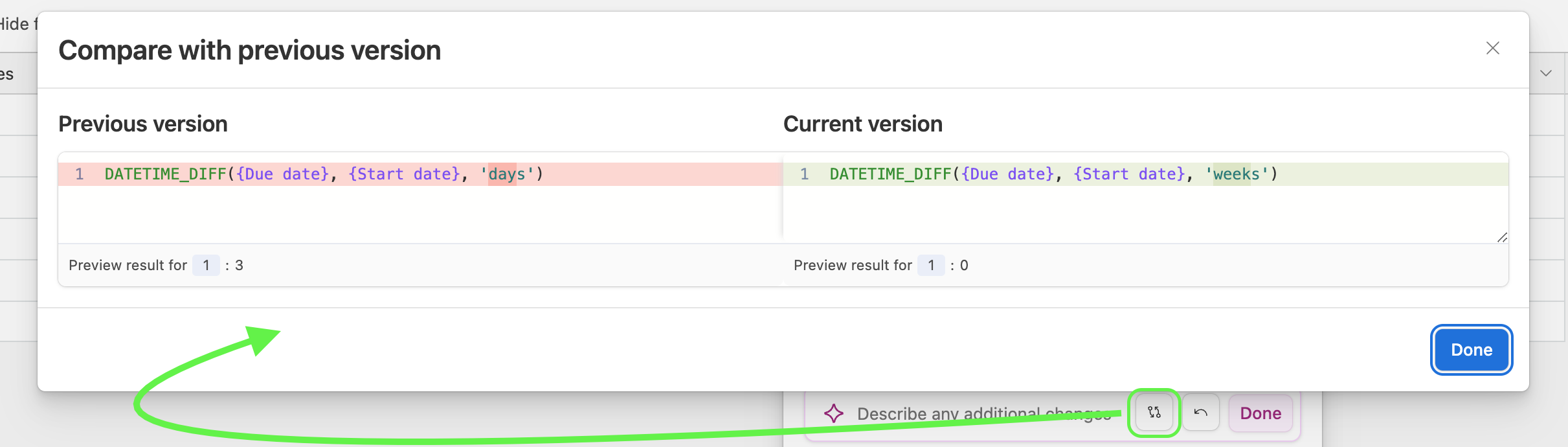
- Slug collisions: If two Airtable records generate identical slugs, Webflow will reject or overwrite one. Add a uniqueness validation in Airtable before syncing.
- Broken rich text formatting: Pasting raw markdown or unsanitized HTML from Airtable into Webflow's Rich Text field can produce malformed heading tags that hurt your content's crawlability.
- Duplicate meta descriptions: Programmatic content pipelines often reuse templated descriptions. Run a de-duplication check in Airtable with a COUNTIF formula before each sync batch.
- Orphaned draft items: Items created in Webflow via API default to draft status. Make sure your automation either publishes items intentionally or your team has a clear review workflow to prevent content limbo.
- Missing canonical tags: If you are syncing content across multiple Webflow collections or using staging environments, verify that canonical URLs are set correctly post-sync to avoid self-referencing duplicate content issues.
How do you validate SEO data after an Airtable-to-Webflow sync?
Validation is the step most teams skip, and it is where SEO regressions hide. After every sync, run through these checks before publishing:

- Spot-check five to ten newly synced items in Webflow's CMS editor to confirm field data populated correctly.
- Use a tool like Screaming Frog or Sitebulb to crawl your staging site and flag any missing title tags, meta descriptions, or broken heading hierarchies introduced by the sync.
- Verify that your sitemap updates automatically after publishing new CMS items. Webflow handles this natively, but third-party scripts can interfere.
- Check Google Search Console for any new crawl errors or manual actions in the days following a large sync push.
Frequently Asked Questions
Does Webflow have a native Airtable integration?
Webflow does not offer a built-in native Airtable connector. The integration requires a middleware tool like Make or Zapier, or a custom script using Webflow's CMS API and Airtable's REST API.
Will syncing Airtable to Webflow automatically publish my pages?
No. By default, items created or updated via Webflow's API are saved as drafts. You need to explicitly trigger a publish action in your automation, either by calling Webflow's publish endpoint or by manually reviewing and publishing inside the Webflow CMS.
Can I use Airtable to manage SEO metadata like meta titles and descriptions for Webflow?
Yes, and this is one of the most powerful use cases. Map dedicated Airtable columns to Webflow's Meta Title and Meta Description CMS fields, use LEN() formulas to enforce character limits, and use conditional coloring in Airtable to flag any records that are out of spec before they sync.
How often should I sync Airtable to Webflow?
For most content teams, a triggered sync (run whenever a record in Airtable is marked Ready to Publish) is more reliable than a scheduled time-based sync. This prevents partial or incomplete records from being pushed to the live site accidentally.
Is programmatic SEO with Airtable and Webflow scalable?
Yes. Teams have successfully used this stack to publish and manage thousands of location or product pages. The key to scaling is investing upfront in clean Airtable data architecture, robust slug generation, and automated QA checks rather than treating validation as an afterthought.
Start building your Airtable-to-Webflow SEO pipeline
Connecting Airtable to Webflow is one of the highest-leverage moves a content team can make for SEO at scale. By treating your Airtable base as the content operations layer and Webflow as the publishing layer, you get the editorial flexibility of a spreadsheet with the design power of a modern CMS, without sacrificing control over your SEO metadata. Start with your field map, pick your middleware, and build in validation from day one.
For content to perform well beyond technical SEO, it also needs to be structured for AI search crawler extraction. And if you want to understand how your Webflow content is currently performing in AI-generated answers, our GEO Audit gives you the full picture.
Ready to be seen?